
Check-ins
Every two weeks, your targets get re-done from what you actually ate and weighed.
A check-in suggests one change and explains why. Nothing changes until you say yes.
On this page
How it works
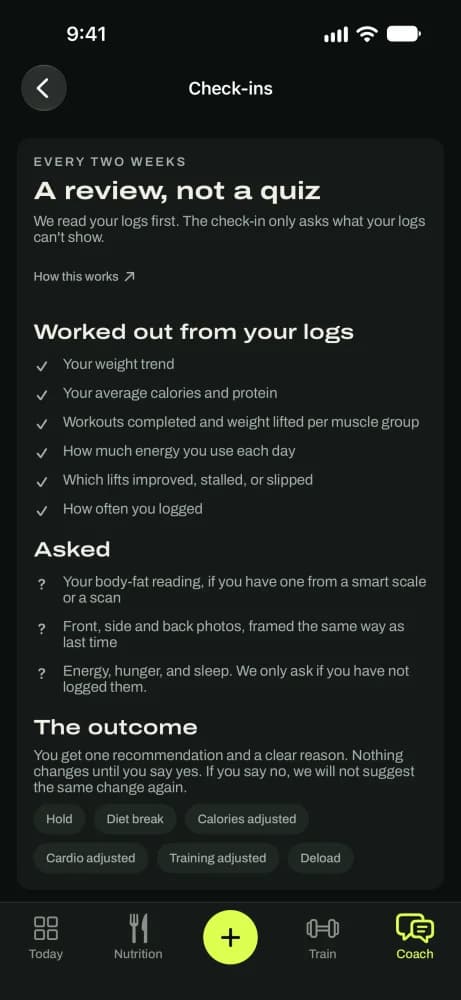
A check-in is a review, not a quiz. The app reads your logs first: your weight trend, average calories and protein, workouts and lifts, daily burn, and how often you logged. It only asks what the logs can't show.
Then it makes one recommendation with a clear reason: hold, adjust calories, adjust cardio, adjust training, a deload week, or a diet break. You accept or decline. For the reasoning behind the numbers, read the method.
- 14 days of logs
- Trend
- One suggestion
- You decide
Before your check-in
Watch the countdown
The Coach tab counts down to your next check-in and shows your weigh-ins and logged days so far. A check-in needs at least 7 weigh-ins and 10 logged days in the two weeks. More of both makes it more accurate.
In the appCoach › Next check-in
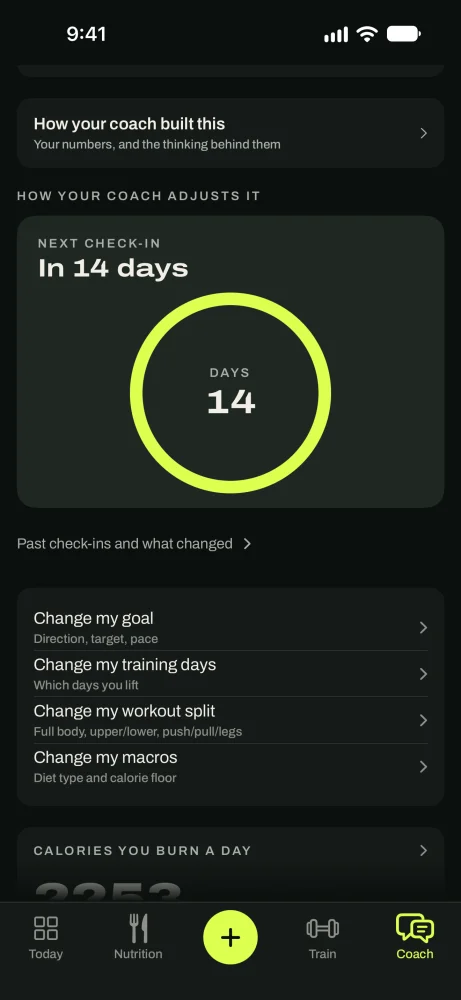
A check-in every two weeks. Weigh in, and measure if you like
Log your weight daily or every other day. You can add your waist and other measurements too. Weights from Apple Health come in on their own.
In the appSettings › Take measurements
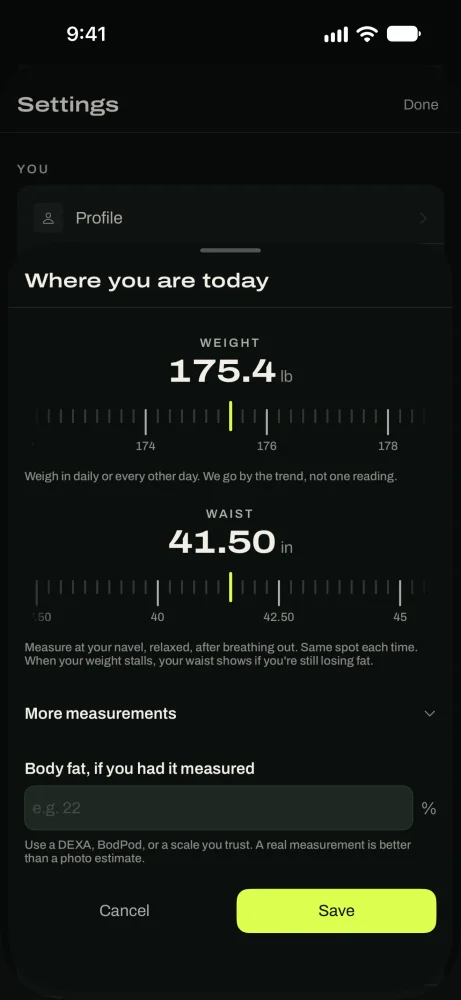
Weigh in, and add measurements if you like.
Run a check-in
Start the check-in
When it's due, tap Start check-in on the Coach tab. If you've had your body fat measured, enter it. If not, tap I don't have one.
In the appCoach › Start check-in
Take progress photos, if you want
Front, back and side, framed like last time. Photos stay on your phone and in your iCloud, and are saved to your photo library. We don't keep a copy.
A photo review sends this check-in's photos and your last ones to Google's Gemini AI through our servers, after asking your permission. It gives you a direction, not a body-fat number. The photos are deleted when the review is done. Skip any pose, or tap Skip photos this time.
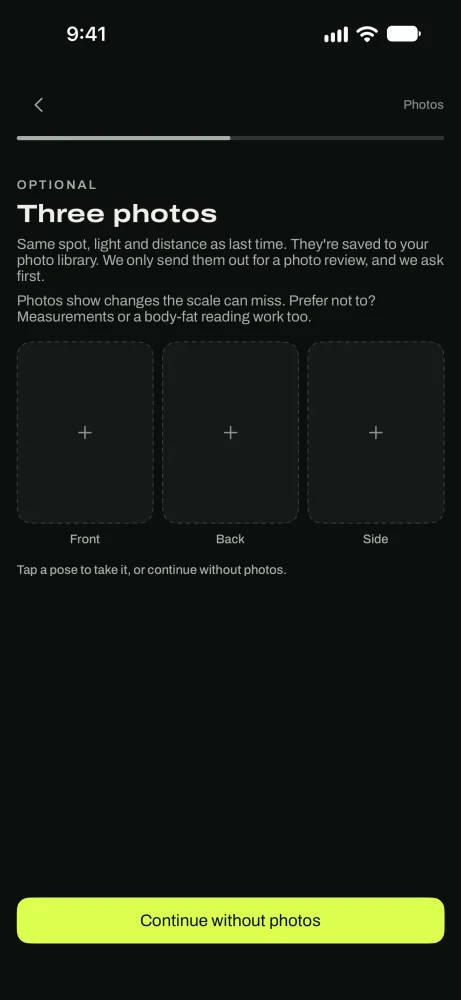
Optional photos, kept on your phone. Say how the two weeks felt
If you didn't log energy, hunger and sleep during the two weeks, the check-in asks now. It takes a few seconds.
Accept or decline the change
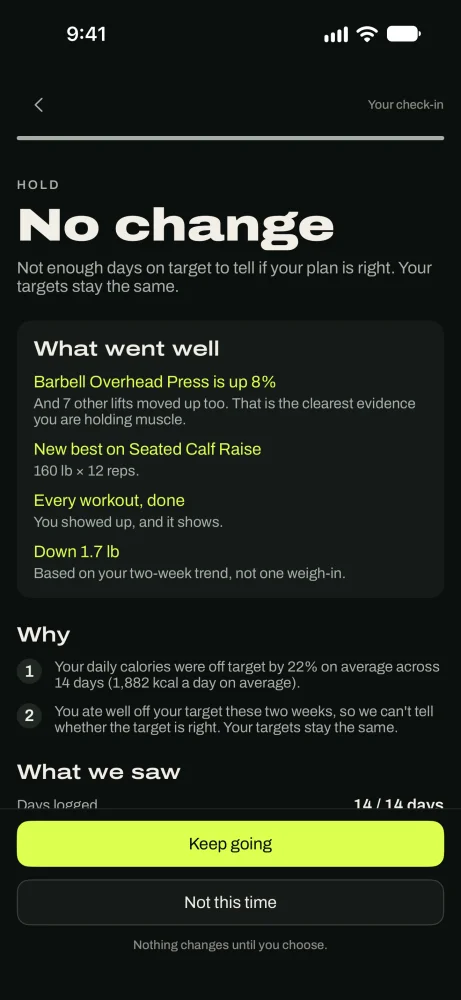
Read the result
The result shows what went well, what the app saw, and why it's suggesting what it is.
Accept or decline
Tap Update my targets to accept. When the suggestion is to hold or rest, the button says Keep going, Start the break or Got it.
Tap Not this time to decline. Your targets stay the same, and the app won't suggest this change at your next check-in.
See past check-ins
Review or undo a change
Past check-ins and what changed lists every check-in and its outcome. Tap Undo this change to reverse one you accepted.
In the appCoach › Past check-ins and what changed
What changed and why.
Good to know
- TipWeigh in on most days. The check-in reads the trend, so more readings make it sharper.
- TipLog the days that went badly too. The check-in needs the whole two weeks.
- TipBefore your first check-in, open What happens at a check-in on the Coach tab to see how it works.
- TipDeclined a change and changed your mind? Wait for the next check-in, or ask your coach.
Questions
Keep reading
The method
Why your targets start as an estimate, how they get measured, and why they move every two weeks.
PlanYour plan
Your goal, daily targets and workouts in one place, and how to change any of them.
ProgressProgress and Apple Health
Today's targets, your weight trend, your measured daily burn, and Apple Health.
Still stuck? Email support@getgoodenough.com.
Coming soon