
Nutrition
Log food the fastest way for the meal in front of you, and see what's left today.
Search, scan, photograph or describe. Every AI estimate can be edited before it's saved.
On this page
How it works
You log food against your daily targets. The Log food sheet has five tabs: Search, Scan, Quick, Library and Describe. Pick items, add them to the tray, then log them together.
Meal photos and descriptions are estimated by Google's Gemini AI. The first time you use one, the app asks your permission. Estimates are a starting point: check the ingredients and portions and change anything before you log. Search, barcode and typed numbers don't use AI.
- Find it
- Add to tray
- Check it
- Log
Log food
Open Log food
Tap + on the Nutrition tab, or the + in the middle of the tab bar and then Log food. The time chip sets when you ate. It defaults to now.
In the appNutrition › +
Search the food database
Type a food or brand and tap Add to tray. Tap an item in the tray to change the portion. When you're done, tap Log.
In the appLog food › Search
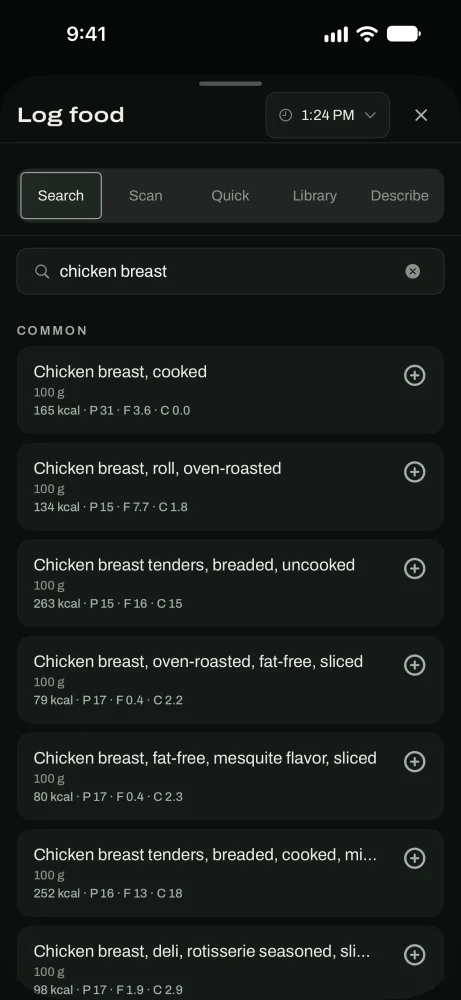
Search the food database.
Scan a barcode, label or meal
The Scan tab has three modes. Use the one that fits what's in front of you.
Scan a barcode
For packaged food. Point at the barcode and tap Add to tray. No barcode signal? Tap Enter barcode by hand.
Not in our database yet? Photograph the package (front, nutrition label and ingredients). The app fills in the numbers, you check them, and the food is saved for everyone.
In the appLog food › Scan › Barcode
Scan a nutrition label
For food with a label but no barcode that works. The app reads the numbers. Check them, name the food and add it.
In the appLog food › Scan › Label
Photograph a meal
For a plate of food. Get the whole plate in the photo. You get an estimate of calories and macros to check before you log.
In the appLog food › Scan › Meal
Describe a meal
Type it, or say it
Write what you ate the way you'd say it: "Two eggs, sourdough toast, half an avocado." Or tap Say what you ate. Tap Estimate.
Foods found in our database are marked. Anything else is an AI estimate, and marked as one.
In the appLog food › Describe
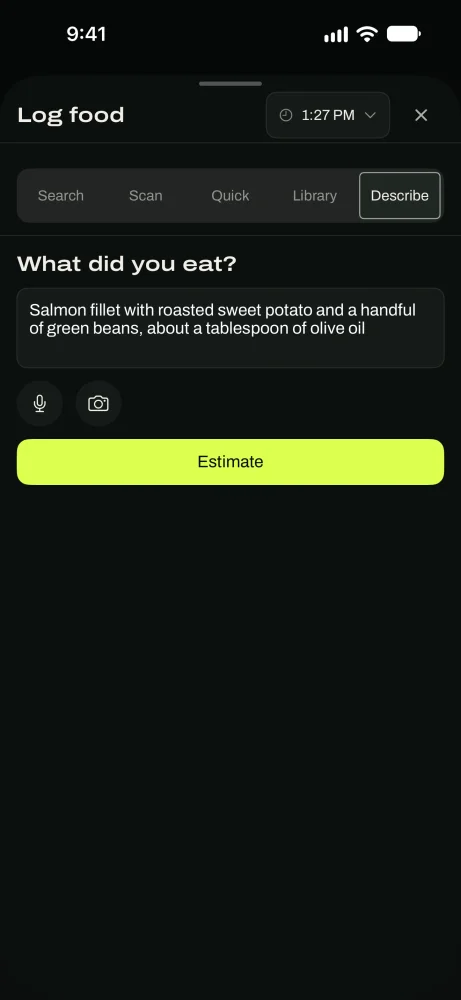
Type it the way you'd say it.
Check an estimate before you log it
Adjust the ingredients and portion
Tap Show ingredients to see what the estimate is made of. Remove anything that wasn't there and change the serving. The numbers update as you go.
Type in the numbers
Know the numbers already? The Quick tab takes a name, calories, protein, fat, carbs and alcohol. If your macros don't add up to your calories, it tells you.
Manage your day
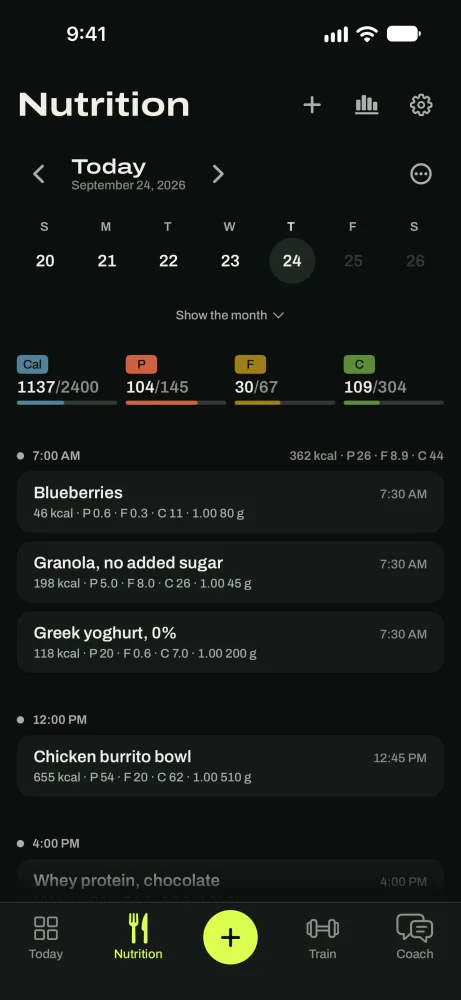
The bars at the top show what you've eaten against today's targets.
Change an entry: tap it. Remove it: swipe left. Several at once: press and hold an entry to select more, then edit, copy, move or remove them.
Copy a day: tap ⋯ › Copy from a day… to repeat meals you eat often.
Water, supplements and notes sit below your food. Your coach and your check-in can read your notes.
Your foods and recipes
Save foods you make yourself and build recipes from ingredients, from a logged day, or from a photo of the dish. They show up in the Library tab of Log food. Manage them in Settings › My foods and My recipes.
Trends and every nutrient
Tap the chart icon on the Nutrition tab for averages over a week, a month or a year, and nutrients beyond the big four: fiber, sodium, sugars, vitamins and minerals. Days you didn't log are left out of averages.
Good to know
- TipBarcode first, search second, photo for anything home-made or eaten out.
- TipPhotos work best from above, with the whole plate in frame.
- TipLog a bite of something rather than nothing. The plan needs the full picture.
- TipMeal photos are stored with your account. Deleting your account deletes them.
Questions
Keep reading
Your plan
Your goal, daily targets and workouts in one place, and how to change any of them.
ProgressProgress and Apple Health
Today's targets, your weight trend, your measured daily burn, and Apple Health.
CoachCoach
Ask about your targets, your workouts or a bad week. It answers from your own logs.
Still stuck? Email support@getgoodenough.com.
Coming soon