
Training
Today's workout is waiting, with last time's numbers next to this time's.
Check off a set and the rest timer starts itself. Finish and your records are called out.
On this page
How it works
A routine sets your targets: the exercises, sets, reps and rest. During the workout you log what you actually lift. A program is a set of routines that rotate through your week.
Each set shows what you did last time, and may suggest a weight and reps to try. Beating last time, even by one rep, is how you get stronger. The app keeps score for you.
- Routine
- Log sets
- Rest
- Finish
- Next time's targets
Routines and programs
Pick a program
Your plan comes with a program. To choose another, browse 40 starter programs and filter by where you train, days a week, split and level. Open one to see its workouts, then tap Use this program.
In the appTrain › Routines › Browse starter routines
Build or edit a routine
Tap Create a routine, or edit one of yours from its ⋯ menu. Add exercises and sets, set rest times, and group exercises into a superset.
The weights and reps in a routine are targets. You log what you actually lift during the workout.
In the appTrain › Routines › + › Create a routine
Log a workout
Start a workout
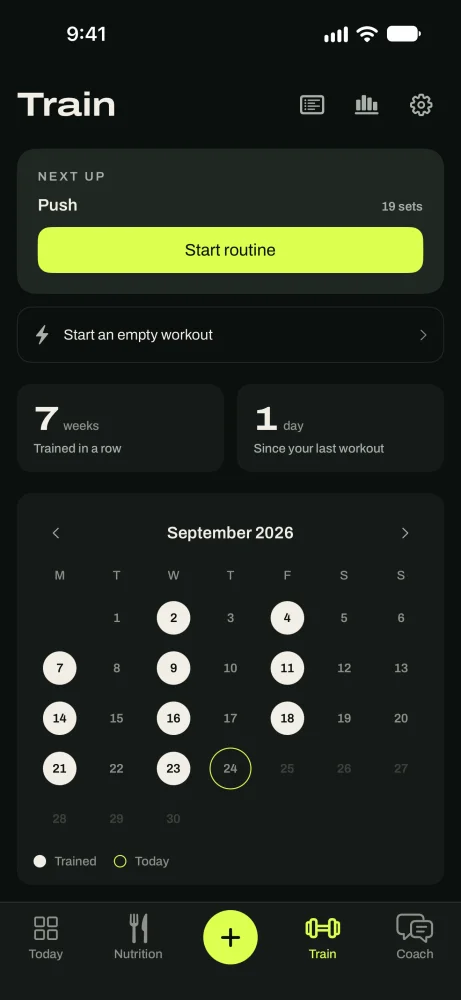
Tap Start routine on the workout under Next up. Or tap Start an empty workout and add exercises as you go.
In the appTrain › Start routine
Log your sets
Enter the weight and reps, then tap the check mark. The Previous column shows what you did last time. A line like Try 135 × 8 is a suggestion, not a rule.
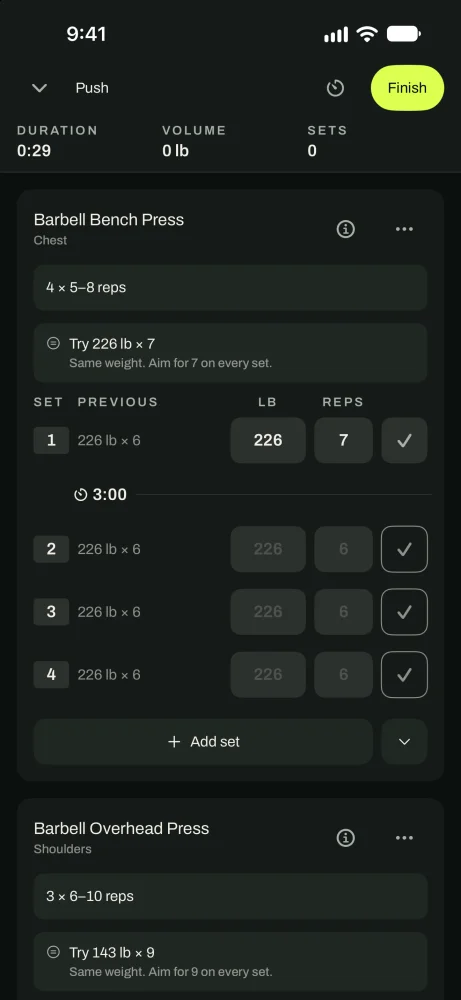
Last time's numbers sit next to this time's. Rest between sets
The rest timer starts when you check off a set. Tap −15 or +15 to adjust, or Skip. Change an exercise's rest time from its ⋯ menu.
In the appExercise ⋯ › Rest timer
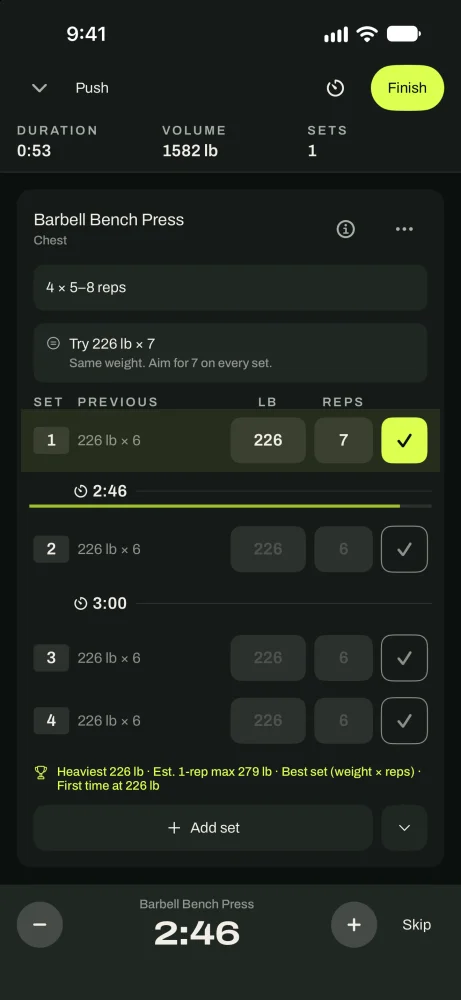
The rest timer starts itself. Load the bar
The plate calculator shows which plates go on each side for your target weight, on a 45 lb bar.
In the appExercise ⋯ › Plate calculator
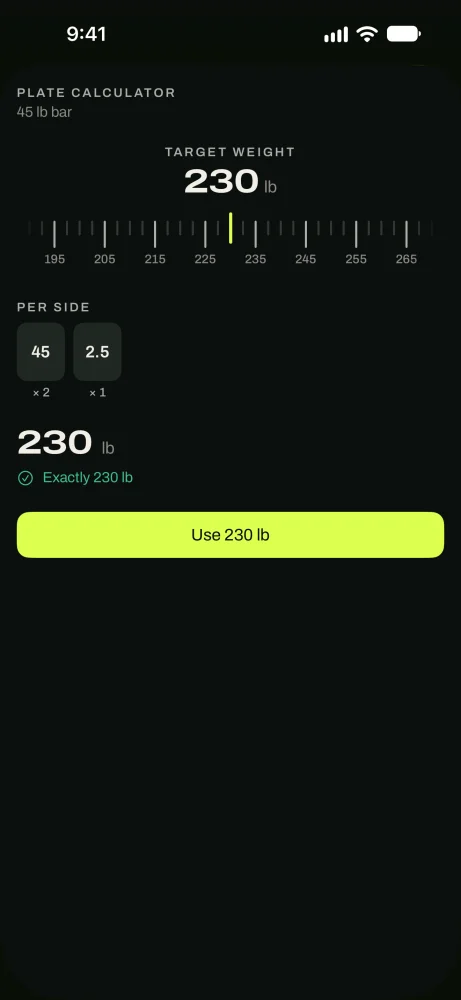
Which plates go on the bar. Swap an exercise
Machine taken, or something hurts? Replace exercise lets you pick another one for this workout. You can also add warm-up sets, reorder exercises and add notes from the same menu.
In the appExercise ⋯ › Replace exercise
Finish and see your records
Tap Finish, then Finish workout. The summary shows what you trained and any records: estimated 1-rep max, heaviest lift, best set, most reps and workout volume. Add a title and notes, then tap Save workout.
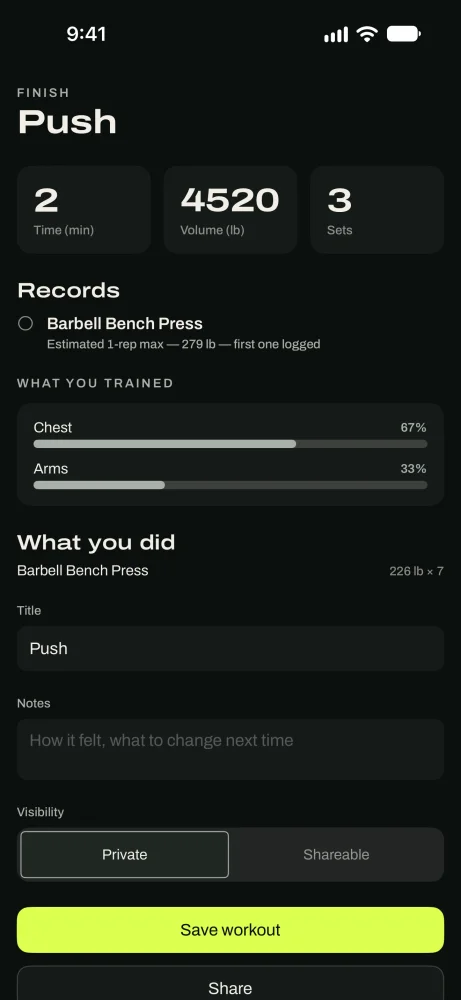
Records are called out when you finish.
Fix a past workout
Correct a logged workout
Tap a workout in your history to reopen it. Fix any set, then tap Save. To change its name, date or notes, tap Name, date and notes. Swipe a workout to delete it.
In the appTrain › tap a workout
Log from Apple Watch
Log sets on your wrist
Start the workout on your iPhone, then tap Start on the watch. Turn the Digital Crown to set weight and reps and tap Done. The watch runs your rest timer and taps your wrist when it's time for the next set.
Sets sync both ways between phone and watch. The watch needs your iPhone nearby.
Exercise library
412 exercises, each with a video and a How to tab: how to do it, how to tell it's going right, and the common mistake. Each exercise also has your history and records.
Missing one? Create your own from the exercise picker. Only you see it.
Training analytics
Tap the chart icon on the Train tab for workouts, volume and sets by muscle group, week by week, plus a monthly report that compares this month with last.
Good to know
- TipBeat last time by one rep or a little weight. That's progress.
- TipShort on time? Do the first exercises and finish. A shorter workout still counts.
- TipSwipe a workout in your history to delete a mistake.
- TipFinished workouts can be written to Apple Health. Turn it on in Settings › Apple Health.
Questions
Keep reading
Your plan
Your goal, daily targets and workouts in one place, and how to change any of them.
CoachCoach
Ask about your targets, your workouts or a bad week. It answers from your own logs.
ProgressProgress and Apple Health
Today's targets, your weight trend, your measured daily burn, and Apple Health.
Still stuck? Email support@getgoodenough.com.
Coming soon